Honeywell Thermostat Reset: Which Type You Need and What It Erases

Picture a cold evening. The screen on your Honeywell thermostat is blank, or stuck on Hold, or the house is stuck on heat when you need cooling. You search for a Honeywell thermostat reset, find a pile of different methods, and wonder which one will fix the problem without wiping your settings.
Here’s the catch. "Reset" can mean six different things, and the wrong one can erase more than you expected. A factory reset can wipe your schedule, your Wi-Fi link, and even the setting that tells the thermostat what kind of heating and cooling system you own.
This guide shows you how to pick the right reset, find the exact steps for your model family, and set everything back up. It also covers when a reset won’t help at all, because the real problem is often power, not the thermostat.
Quick Summary
- Start with the gentlest option: check the batteries, the breaker, and the Hold setting.
- Pick the smallest of the six reset types that matches your problem: restart, power cycle, schedule, Wi-Fi, HomeKit, or factory.
- Write down your installer settings before any factory reset, especially the system type.
- Steps differ by model family, so find your model number first.
- If the screen stays blank after a reset, suspect power or a safety switch, not the thermostat.
What does it mean to reset a Honeywell thermostat?
A Honeywell thermostat reset returns the thermostat to a known starting point. Depending on the type you choose, it can restart the screen, clear only your schedule or Wi-Fi link, or erase every setting back to factory defaults. The right choice depends on the symptom you’re seeing.
Honeywell Home, the consumer line made by Resideo, sells many thermostat families, and each hides its reset options in a different place. That’s why generic advice fails so often. First, let’s figure out which thermostat you own.
Which Honeywell thermostat do I have?
Find the model number, usually printed on the back of the faceplate or on the base once the faceplate is off, and on some models inside a menu. The number tells you the family, and the family tells you which reset steps apply.
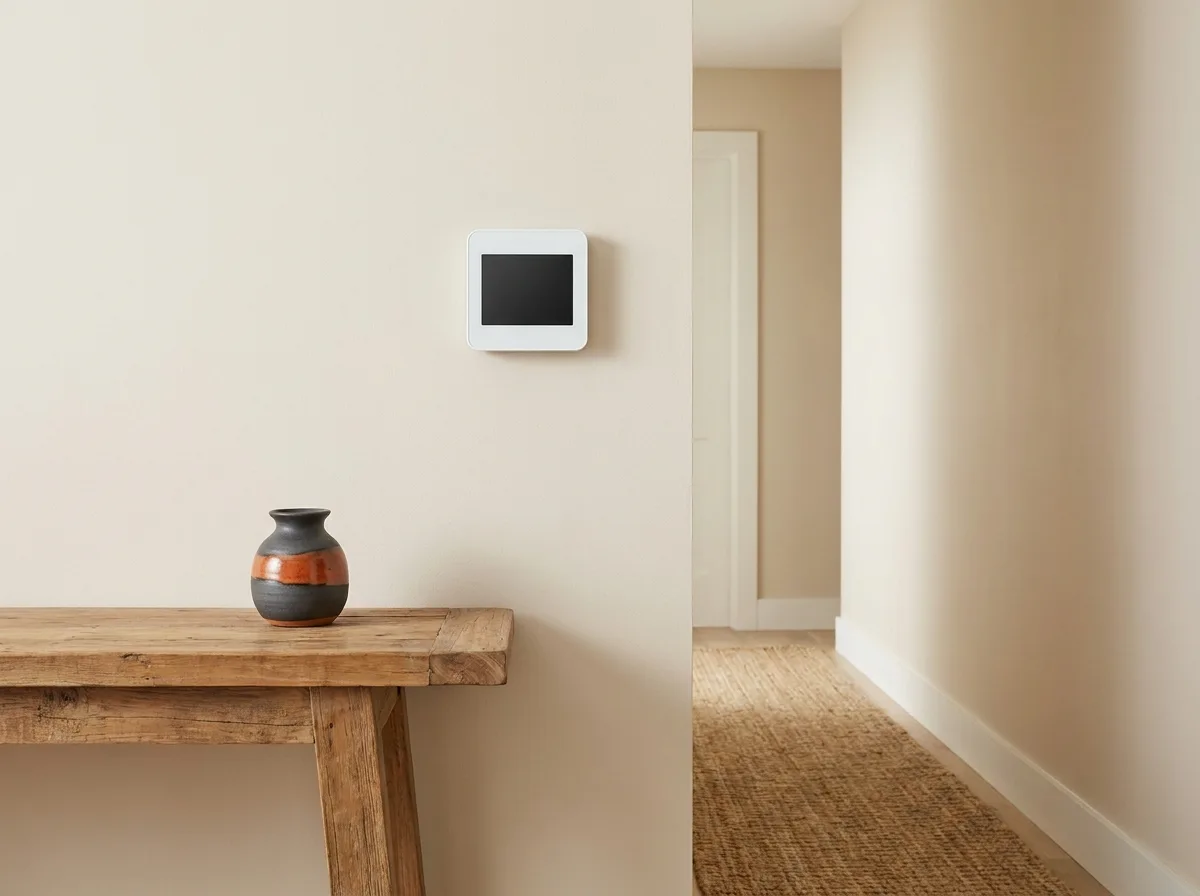
If you can’t read a label, use the look of the unit as a starting clue. A round dial points to the Lyric Round. A screen with a row of physical buttons often points to an older FocusPro. A color touchscreen could be a T5, T6, T9, T10, Smart WiFi 9000 or VisionPRO. Then confirm with the model number.
| Family | Typical model numbers | Where the reset lives |
|---|---|---|
| T5, T5+, T6 | TH6320WF2, TH6220WF2, RCHT8610WF | Hold Menu, then the Reset option |
| T9 | RCHT9510WF, RCHT9610WF | Menu > Advanced Setup > Reset |
| T10 | THX321WF | Installer Options, using the date code |
| Smart WiFi 9000 | RTH9580WF, RTH9585WF, TH9320WF | Menu > Preferences |
| FocusPro 6000 | Varies | Button combination and numeric codes |
| VisionPRO 8000 | TH8320WF, RTH8580WF, TH8321WF | System screen codes, or Installer Options |
| Lyric Round | TH8732WFH | Hold the cloud icon |
This table follows Honeywell Home Support’s reset guide, last updated in September 2025. Models change, so treat it as a map, then check your own manual.
What should I do before resetting?
Write down your settings first. A factory reset erases the schedule, Wi-Fi details and installer choices, and you can’t recover them afterward. Five minutes of note-taking now saves an hour of guessing later.
Use this checklist before you touch a reset option:
- Photograph or write down your weekly schedule.
- Note your Wi-Fi network name and password.
- Record the system type shown in the installer settings, such as conventional or heat pump.
- Note how many heating and cooling stages the system uses, if the menu shows it.
- Find the thermostat’s date code or installer code if your model needs one.
- Check the batteries, if your model uses them.
A common mistake is jumping straight to a factory reset when the cause is power. Say your screen goes blank on a humid day. Before you reset anything, flip the HVAC breaker off and on, and look at the condensate drain. Some users on HVAC forums report a blank screen that came back once a clogged drain line was cleared and a tripped float switch reset.
Keep safety in mind. Turn off the HVAC breaker before removing a thermostat from its base. Never work on wires with power on. Wiring jobs can fall under local electrical rules, and codes vary, so hire a licensed HVAC technician or electrician if you’re unsure. I’d also say the same to anyone mid-renovation. If a project such as a bathroom remodel has crews opening walls and moving breakers, check that your thermostat still has power and wiring before you blame the thermostat.
What is the difference between a soft, hard, and factory reset?
A soft reset restarts the thermostat and keeps your settings. A hard reset cuts power for a short time. A factory reset erases everything. Honeywell also offers narrower resets for Wi-Fi, schedule and HomeKit. Pick the smallest one that matches your problem.
Terms vary between websites, so don’t be surprised if "hard reset" means different things on different pages. Use this table as a guide.
| Reset type | What it clears | Equipment settings lost? | Use it when |
|---|---|---|---|
| Soft restart | Nothing saved | No | Screen is frozen or sluggish |
| Power cycle | Usually nothing, but some models may lose the clock or schedule, so check your manual | No | Thermostat seems confused after an outage |
| Schedule reset | Weekly program | No | Temperatures follow the wrong plan |
| Wi-Fi reset | Network connection | No | App says disconnected |
| HomeKit reset | Apple Home pairing | No | Pairing is broken |
| Factory reset | All settings | Yes, often | Nothing else worked, or you’re handing off the home |
How to reboot Honeywell thermostat units without losing settings
To reboot Honeywell thermostat hardware without losing anything, cut power briefly and restore it. Switch the HVAC breaker off for a minute or two, then back on. Some models also let you pop the unit off the wall plate or remove the batteries, which can restart it the same way.
Do the breaker step first, and only then remove the faceplate. One homeowner on r/hvacadvice reported that pulling the unit off the wall and re-seating it brought a dead-looking screen back. Your saved schedule and installer settings should remain, but some models may lose the clock or schedule after power is cut. Check your manual to be sure.
How do I do a Honeywell thermostat reset on a T5 or T6?
On these models, press and hold the Menu button, scroll with the right arrow until you see Reset, and then pick the type: Factory Reset, WiFi, Schedule or HomeKit. Confirm the choice. Honeywell’s page confirms this flow for the T5, T5+ and T6. It doesn’t list the T6 Pro, so if you own one, its menu may differ and I’d check its manual first.
Here’s the flow in order:
- Press and hold Menu.
- Press the right arrow until Reset appears.
- Choose Factory Reset, WiFi, Schedule or HomeKit.
- Confirm when the screen asks.
- Wait for the thermostat to restart.
Before you confirm a factory reset, write down your system type. The setup section below explains why.
How do I reset a Honeywell T9 or T10?
On a T9, go to Menu, then Advanced Setup, then Reset, and choose Factory, Schedule or HomeKit. On a T10, you need the date code from the thermostat information screen, then enter it as the password inside Installer Options before you reach Reset.

For the T9, the Wi-Fi option lives elsewhere. Open Menu, then WiFi, then Change Network.
For the T10, the process takes a few more steps:
- Open Menu, then Thermostat Information.
- Write down the Date Code.
- Go back and open Installer Options.
- Enter the date code as the password.
- Choose Reset.
The T10 uses a date code instead of a fixed passcode. Some blog posts claim a universal trick, such as the date code plus a fixed number. Honeywell’s support page doesn’t list it, so skip it.
How do I reset a Honeywell Smart WiFi 9000, FocusPro 6000 or VisionPRO?
The Smart WiFi 9000 uses a menu: Menu, Preferences, Restore Factory Defaults, then Yes. The FocusPro 6000 and VisionPRO 8000 use button combinations and numeric codes. Follow Honeywell Home Support’s steps for your exact model, since a wrong code can change settings you didn’t mean to touch.
Smart WiFi 9000 (RTH9580WF, RTH9585WF, TH9320WF): choose Menu, then Preferences, then Restore Factory Defaults, then Yes. For Wi-Fi only, go to Menu, then WiFi Setup.
FocusPro 6000: Honeywell’s page describes holding the up arrow and Fan buttons, then setting the left number to 90 and the right number to 1 for a factory reset. For Wi-Fi, the pair is 39 and 0. For the schedule, it’s 85 and 1. Press Done to finish.
VisionPRO 8000 (TH8320WF, RTH8580WF): press System, then press and hold the blank box in the center of the screen. Enter 0710 and 1 for a factory reset, 0900 and 0 for Wi-Fi, or 0165 and 1 for the schedule.
VisionPRO TH8321WF: this one works differently. Open Menu, then Dealer Information, and note the date code. Next, open Installer Options, enter the date code, and choose Reset to Defaults.
Codes and menus can change with firmware, so confirm against your manual before you start.
How do I reset an older Honeywell thermostat with no reset button?
Older models often have no reset button, and some, like the RTH7600D, have no factory reset option in plain sight. They usually rely on a power cycle or a hidden installer menu. Find the exact model number, then look up that model’s manual before you try button combinations.
That goes for a specific number like the TH6110D1005 too. Read the full model number on the faceplate, then search Honeywell’s support site for it. If there’s no menu button and no manual, work through these options in order:
- Replace the batteries if the model uses them.
- Turn the HVAC breaker off for a minute or two, then back on.
- With the breaker still off, lift the thermostat off its wall plate and set it back firmly.
- Restore power and check whether the display wakes up.
Some forum users report that a thermostat only needs its contacts re-seated. Treat that as a free first step, not a guarantee. If you aren’t comfortable removing the unit, stop and call a pro. Using a White Rodgers unit instead? The logic is similar, but its menus differ, so use its own manual.
How do I reset Honeywell thermostat Wi-Fi without a full factory reset?
Use the Wi-Fi reset option instead of a factory reset. On a T5 or T6 it sits in the same Reset menu. On a T9, use Menu, WiFi, Change Network. On a Smart WiFi 9000, use Menu, WiFi Setup. This clears the connection and leaves your schedule alone.
After you clear the network, reconnect to your router. Newer models generally pair with the Resideo app, and some older units use Total Connect Comfort, so check which app your manual names. If you see "WI-FI DISCONNECTED," try turning Wi-Fi off and on from the menu first. One RTH8500WF owner reported that this helped.
On the Lyric Round, use the menu to forget the network, then set it up again. If it still won’t connect, check the router. A weak signal near the thermostat is a frequent cause, and no reset will fix that.
How do I reset only the schedule?
Use the Schedule option instead of the factory reset. Your Wi-Fi and installer settings stay put. Here is where it lives on each family:
- T5, T6 and T9: the Schedule choice in the Reset menu.
- FocusPro 6000: the code pair 85 and 1.
- VisionPRO 8000: the code pair 0165 and 1.
- Smart WiFi 9000: Menu, then Preferences, then Restore Default Schedule.
- VisionPRO TH8321WF: Menu, then Preferences, then Default Schedule.
- Lyric Round: Menu, then Preferences, then Restore Default Schedule.
It’s the smart move when temperatures are wrong but everything else works, such as a schedule left by a previous owner. Before you reset, check for Hold. A permanent hold ignores the program entirely, while a temporary override usually runs only a few hours. Many people think the schedule is broken when it’s simply on Hold.
What do I set up after a factory reset?
After a factory reset, set the time and date, then the system type, then the number of heating and cooling stages, and finally your schedule and Wi-Fi. The system type matters most. If it’s wrong, the thermostat can behave oddly or limit you to heat only.
Here’s a clearly hypothetical example. Say you have a heat pump and you factory reset a thermostat because the screen was acting up. The thermostat starts fresh and may assume a conventional system. Cooling doesn’t respond, and you only get heat. The fix is to open the installer settings and choose the heat pump option. A forum poster described this exact problem after a reset, which is why I always write the system type down first.
Work through this order:
- Set the date and time.
- Open the installer settings, using your date code if the model needs it.
- Choose the correct system type.
- Set the number of stages and any fan options you wrote down.
- Rebuild the weekly schedule.
- Reconnect Wi-Fi and the app.
If you don’t know your system type, ask a licensed HVAC technician. Guessing can leave your system running in the wrong mode.
Why is my Honeywell thermostat blank, stuck on Hold, or resetting itself?
A blank screen often means the thermostat has lost power, not that it’s broken. Check the batteries, the breaker, and the condensate float switch. A thermostat that keeps resetting often points to a wiring or power issue. A stuck Hold is a setting, not a fault.

Here are the most common causes in a rough order of likelihood:
- Dead batteries: the first and cheapest check, if your model uses them.
- Tripped breaker: reset it once, and if it trips again, call a pro.
- Condensate float switch: a clogged drain line can trip a safety switch that cuts low-voltage power.
- 24-volt power problem: a blown transformer fuse or a loose wire can starve the thermostat.
- Missing or loose C-wire: a thermostat without steady power can reboot repeatedly.
A thermostat that "resets to 85" is a common complaint on Quora. One explanation is that unprogrammed schedule periods fall back to a default setpoint, so programming all seven days is a free fix to try. For stuck Hold, cancel the hold and look for a Run or Resume Schedule option.
A multimeter reading across the R and C terminals can confirm power, and typical systems run around 24 volts AC. Only try it if you know how to work safely around low-voltage wiring. Otherwise, call a pro.
When should I call an HVAC pro or replace the thermostat?
Call a pro if the screen stays blank after power checks, the breaker keeps tripping, you smell burning, or you aren’t sure about wiring. Think about replacement if the thermostat is around a decade old or repeated resets don’t hold. Contractors often quote about ten years as a typical lifespan.
Honeywell suggests trying a different reset type if one fails, then contacting its support. After that, the problem may sit in the control board or wiring. One homeowner on r/hvacadvice found corroded control board wires behind a "dead" T5, and that repair cost far more than a new thermostat would have.
I couldn’t find a reliable, sourced price range for pro help or for a replacement thermostat, so I won’t quote one. Costs vary by region, system and parts, so ask for a written quote before any work starts. In my opinion, a flat quote beats an open-ended hourly estimate for a simple swap.
Some jobs belong with a pro even when they look simple, and the reasons differ. Wiring and control boards carry electrical risk. A task like garage door cable replacement is different, because the danger is stored spring tension. Plenty of homeowners swap a thermostat safely, but I’d skip any repair you don’t fully understand.
If your system is old and the thermostat isn’t the cause, it may be time to think bigger. Our guide to furnace replacement walks through when repair stops making sense.
Honeywell Thermostat Reset FAQ
Does a factory reset delete my Wi-Fi and schedule?
Yes. A factory reset returns the thermostat to its default state, so your schedule, Wi-Fi network and most preferences disappear. Installer settings can go too. Use the narrower Wi-Fi or Schedule reset when you only need to fix one thing.
How long should I hold the reset button?
It depends on the model. Honeywell’s guidance lists steps, such as holding Menu on a T5 or T6, but I wouldn’t trust a made-up number of seconds from a random page. Follow your model’s manual or Honeywell Home Support. If nothing happens, you may have the wrong model steps.
Can I reset a Honeywell thermostat if there is no menu button?
Often yes. Start with fresh batteries and a breaker power cycle. If that fails, look up the full model number and find its manual. Some older models hide their factory reset in an installer menu or button combination. If you can’t find it, a licensed HVAC pro can do it in minutes.
Why does my thermostat show only heat after a reset?
Open the installer settings and check the system type. If you own a heat pump, choose that option. Some models need a date code to enter those settings. If you aren’t sure, ask an HVAC technician.
Do I need to reset the thermostat after a power outage?
Usually not. Most thermostats resume on their own once power returns. Check the clock, the batteries and the schedule. If the screen is blank or the system won’t start, look at the breaker and the condensate float switch before you reset anything.
Will resetting fix a blank screen?
Rarely. A reset can help if the display is frozen, but it won’t restore power that isn’t there. Work through the power checks listed above first, and skip the factory reset until they pass.
Why is my Honeywell thermostat not working after a reset?
Check the basics again. Confirm power, the correct system type, and that Hold isn’t active. A factory reset can leave the thermostat with default equipment settings that don’t match your system. Walk through the installer settings step by step. If the problem remains, call Honeywell Home Support or an HVAC pro.
How do I reset a Honeywell thermostat that is locked or needs a code?
Some installer menus require a code. On the T10 and VisionPRO TH8321WF, the date code from the thermostat information screen acts as the password. Other models use fixed codes listed in Honeywell’s guide. If you bought a home and have no code, Honeywell Home Support is the best place to start.
Is a Honeywell Home thermostat reset different from older Honeywell models?
Yes, in the menus. Newer models use on-screen menus, while older units often rely on buttons, codes or a power cycle. Match your steps to your exact model number, not the brand name.
How long does a Honeywell thermostat last?
Contractors commonly cite roughly ten years, with a wide range around that figure. Heavy use, power surges and wiring problems can shorten it. If yours is near that age and keeps misbehaving after a clean reset, replacement may cost less than repeated service calls.
The Bottom Line
Back to that cold evening. A good Honeywell thermostat reset doesn’t mean trying every method in sequence. Check power first, then pick the narrowest reset that matches your problem. Save the factory reset for last, and write down your system type before you use it.
If a restart, Wi-Fi reset or schedule reset solves it, you’re done in minutes. If the screen stays blank, treat it as a power puzzle, not a software one. And if you reach the point where wiring, the control board or an aging system is the suspect, bring in a licensed pro.
Your next step is simple. Find the model number on your thermostat, match it to the right family above, and write down your settings before you touch a button. Which part of your setup do you think would be hardest to rebuild from scratch, your schedule, your Wi-Fi, or your system type?